Understanding How Proximity Sensors Work
Most modern smartphones include a proximity sensor to detect when the phone is near your face during a call. This sensor is crucial because it ensures the screen turns off during calls automatically, preventing accidental touches that could mute the microphone, hang up the call, or trigger other functions.
Table of Contents
Mechanism Behind the Sensor
The proximity sensor uses infrared light to detect nearby objects. When it senses your ear or face, it sends a signal to the phone’s operating system to turn off the display. This feature conserves battery and protects the touchscreen from unintended interactions.
Common Misunderstandings
Many users assume that if the screen turns off, it must be broken. In reality, this automatic behavior is intentional. Problems arise only when the screen turns off at the wrong time, such as while holding the phone away from your face.
Related hardware interference can be explored in [Device doesn’t recognize accessories: why?].
Why Your Screen Turns Off Unexpectedly
Unexpected screen shutdowns during calls can frustrate users. Understanding the root causes helps in troubleshooting effectively.
Sensor Obstructions
Dust, fingerprints, or smudges can partially block the proximity sensor. Even a thin layer of grime may cause the sensor to send false readings, making the screen turn off prematurely. Cleaning the area carefully usually resolves the issue.
Screen Protector Interference
Not all screen protectors are compatible with proximity sensors. Thick or misaligned protectors can cover part of the sensor, triggering unintended screen shutdowns. Users should check whether their protector design interferes with the sensor.
Software Glitches
Operating system bugs, app conflicts, or pending updates may impact sensor behavior. A simple restart, software update, or clearing cache can restore normal functionality.
For software-related causes affecting connectivity, see [Why devices disconnect randomly: is it a real problem?].
Hardware Malfunctions
Persistent issues despite cleaning and updating software usually indicate a hardware problem. The sensor itself may be faulty, or internal components near the sensor might be damaged. Professional repair or replacement is often required in these cases.
Step-by-Step Troubleshooting
Rather than relying on random fixes, a structured approach ensures efficient resolution.
Inspect and Clean the Sensor
Examine the sensor for dirt or residue. Use a microfiber cloth to clean the area gently. Avoid liquids that could damage the device. After cleaning, test the screen behavior during calls.
Adjust Screen Protector
If the device uses a screen protector that partially covers the sensor, remove or reposition it. Re-testing the phone helps determine if the protector was the cause.
Update Software and Apps
Check for system updates and ensure all apps are up to date. Conflicting apps can sometimes affect sensor readings, so identifying recently installed apps and testing without them can help.
Sensor Calibration or Reset
Some devices allow calibration of the proximity sensor through diagnostic menus. Resetting settings to default can also eliminate software misconfigurations that trigger premature screen shutdowns.
Battery-related issues impacting sensor performance are detailed in [Battery drains fast without use: is something wrong?].
Preventive Measures
Prevention reduces the risk of recurring issues and improves overall call experience.
Keep Your Device Clean
Regularly clean the phone, especially the area around the sensor, to prevent dust and oils from affecting performance.
Use Certified Accessories
Use only certified chargers, cases, and screen protectors. Unofficial accessories can block sensors or cause hardware conflicts.
Regular Software Maintenance
Keep the device’s operating system updated. Regular updates fix bugs and enhance sensor accuracy.
Real-World Scenarios Where the Screen Turns Off Unexpectedly
Understanding how screen turns off during calls behaves in actual use helps identify whether it’s a normal feature or a malfunction.
Scenario 1 – Using a Smartphone While Lying Down
Many users report that when holding the phone at a lower angle, the screen shuts off even when the phone is slightly away from the face. This is often due to the proximity sensor’s sensitivity and how infrared light is reflected by different surfaces, including pillows or blankets.
- Technical insight: Some phones adjust sensor thresholds based on light intensity and ambient conditions, which can inadvertently trigger premature screen shutdown.
Scenario 2 – Using Headphones During Calls
When using wired or Bluetooth headphones, the device may still activate the proximity sensor if it detects your hand near the screen. Users may perceive this as a malfunction, but it is actually the system trying to prevent accidental touches.
For connectivity-related effects, see [Why devices disconnect randomly: is it a real problem?].
Scenario 3 – Inconsistent Behavior Across Phone Models
| Brand/Model | Typical Screen Shutdown Behavior | Known Issues |
|---|---|---|
| Samsung Galaxy S series | Turns off reliably near the face | Rare sensor misalignment on older models |
| iPhone 13 | Immediate shutdown near ear | Can misfire with screen protectors |
| Pixel 6 | Adaptive shutdown, slightly delayed | Software updates may reset calibration |
| OnePlus 10 | Slight delay in shutting down | Interference from face recognition sensors |
This table illustrates that screen behavior can vary depending on manufacturer, model, and even system updates. Users should first compare their experience with typical behavior for their specific device.
Sensor Malfunctions and How They Affect Call Experience
While sensors are generally reliable, hardware degradation or interference can trigger screen turns off during calls unexpectedly.
Hardware Aging
Over time, the infrared diode or photodetector in the proximity sensor may weaken, causing inconsistent readings. Symptoms include:
- Screen turning off when the phone is held in the hand, away from the ear.
- Screen remaining on when placed near the face.
Battery issues may indirectly affect sensor performance, see [Battery drains fast without use: is something wrong?].
Interference From Other Components
Other components, like front cameras, face recognition sensors, or ambient light sensors, can interfere with the proximity sensor if they are misaligned or if the device suffers minor internal damage.
- Example: A cracked screen glass can slightly misalign the sensor, causing erratic behavior.
Preventive Maintenance and Best Practices
Maintaining your phone reduces the likelihood of experiencing unintended screen shutdowns.
Keep Sensor Area Clean
Regularly wipe the area around the sensor using a microfiber cloth. Avoid sprays or liquids that may seep inside and damage internal components.
Use Compatible Accessories
Screen protectors, cases, and even tempered glass must be compatible with your phone model. Misaligned accessories are a frequent cause of screen turns off during calls problems.
Update System Software
Software updates often include fixes for sensor behavior, especially after major OS releases. Users should enable automatic updates or check for updates regularly.
Software-related connectivity issues can be cross-referenced with [Internet works sometimes but fails randomly: why?].
Advanced Troubleshooting for Screen Turning Off During Calls

When basic cleaning, accessory adjustments, and system updates don’t solve the issue, advanced troubleshooting steps can help pinpoint the problem.
Checking Proximity Sensor Calibration
Some smartphones allow calibration of the proximity sensor:
- Open your phone’s dialer and enter the service code (varies by brand).
- Select the proximity sensor test or calibration option.
- Follow the instructions to ensure the sensor correctly detects near/far objects.
Calibration helps fix erratic screen shutdowns without hardware replacement.
Testing in Safe Mode
Booting the device in safe mode disables third-party apps.
- If screen turns off during calls stops in safe mode, a third-party app is likely interfering with sensor operation.
- Common culprits: call recording apps, custom ROMs, and battery optimization apps.
Apps affecting performance can also impact connectivity, see [Wi-Fi keeps dropping during streaming: what’s causing it?].
Resetting System Settings
Resetting network or system settings can eliminate software conflicts affecting sensor behavior:
- Backup important data first.
- Reset network and system preferences in settings.
- Reboot the phone and test call behavior.
Long-Term Maintenance Tips
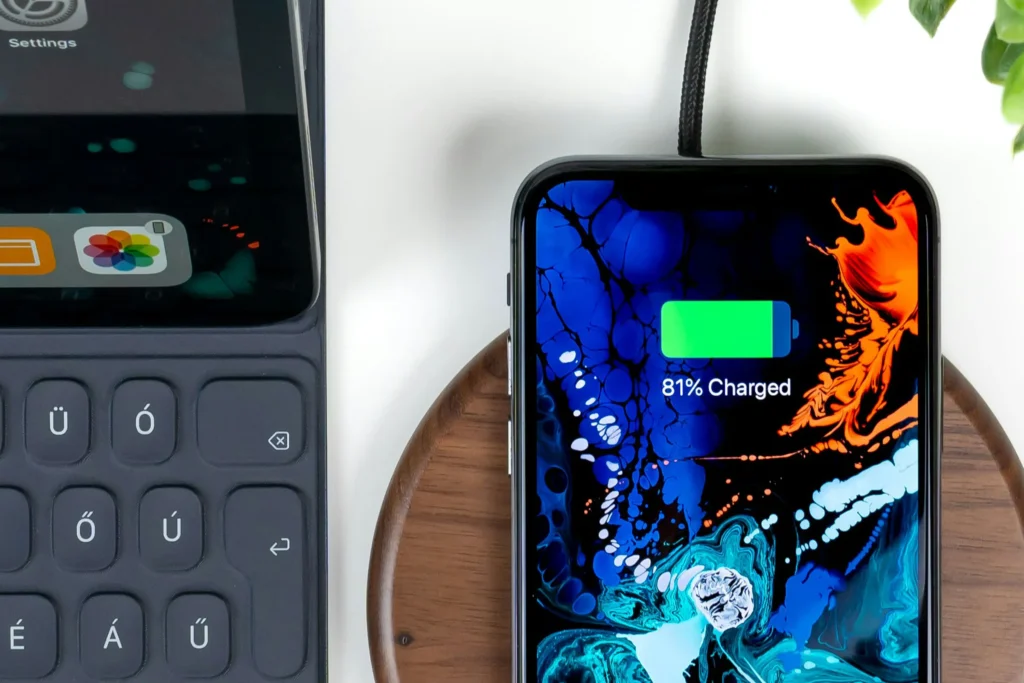
Maintaining the phone properly reduces the chance of screen turns off during calls problems recurring.
Regular Cleaning and Inspection
- Clean the proximity sensor area weekly.
- Check for cracks or scratches that may misalign the sensor.
Use Certified Accessories
- Only use manufacturer-approved cases and screen protectors.
- Avoid thick or opaque protectors that block infrared sensors.
Software Maintenance
- Install updates promptly, especially those addressing system stability.
- Avoid third-party apps that override system call functions.
Battery Health Considerations
- Keep battery levels stable. Extreme drops or overheating can indirectly affect sensor accuracy.
- See
[Battery drains fast without use: is something wrong?]for advice on maintaining battery health.
Common Mistakes Users Make
Even with proper maintenance, users sometimes misinterpret normal sensor behavior as a fault:
- Holding the phone at an unusual angle – sensors are calibrated for typical face-to-phone distances.
- Covering sensors with fingers or accessories – this can trigger the screen to turn off unexpectedly.
- Assuming software bugs are always to blame – many times, the hardware and user environment cause the problem.
If connectivity issues occur simultaneously, see [Bluetooth disconnects by itself: should you worry?].
When to Seek Professional Help
If troubleshooting and maintenance don’t resolve the issue, professional inspection is recommended.
- Certified repair centers can test sensor alignment.
- Replacement of the proximity sensor module may be necessary in rare cases.
- Avoid DIY repairs that may void warranty or damage the device further.
FAQs About Screen Shutting Off During Calls
Is it normal for the screen to turn off during calls?
Yes, it is a feature designed to prevent accidental touches. Problems only occur when the screen shuts off incorrectly.
Can a case or screen protector cause this problem?
Yes, thick or opaque protectors may block part of the proximity sensor. Removing or adjusting the accessory often fixes the issue.
My phone screen turns off even when not near my face, what should I do?
Check for dirt, debris, or misaligned accessories. If the problem persists, a system update or hardware inspection is recommended.
Can battery problems affect sensor function?
Yes, in rare cases, low or unstable battery voltage can cause sensors to behave unpredictably, indirectly causing the screen to turn off at the wrong time.
Summary and Key Takeaways
- Understanding normal behavior is the first step: screen turning off during calls is usually a safety feature.
- Check sensors and accessories to ensure no obstructions or misalignments.
- Use software tools like calibration, safe mode testing, and system resets to troubleshoot.
- Maintain your device with updates, certified accessories, and battery care.
- Seek professional help if the problem persists despite all troubleshooting steps.
By following these guidelines, users can prevent or fix most issues where the screen turns off during calls, maintaining smooth call experiences and avoiding unnecessary repairs.