Table of Contents
Understanding Automatic Brightness
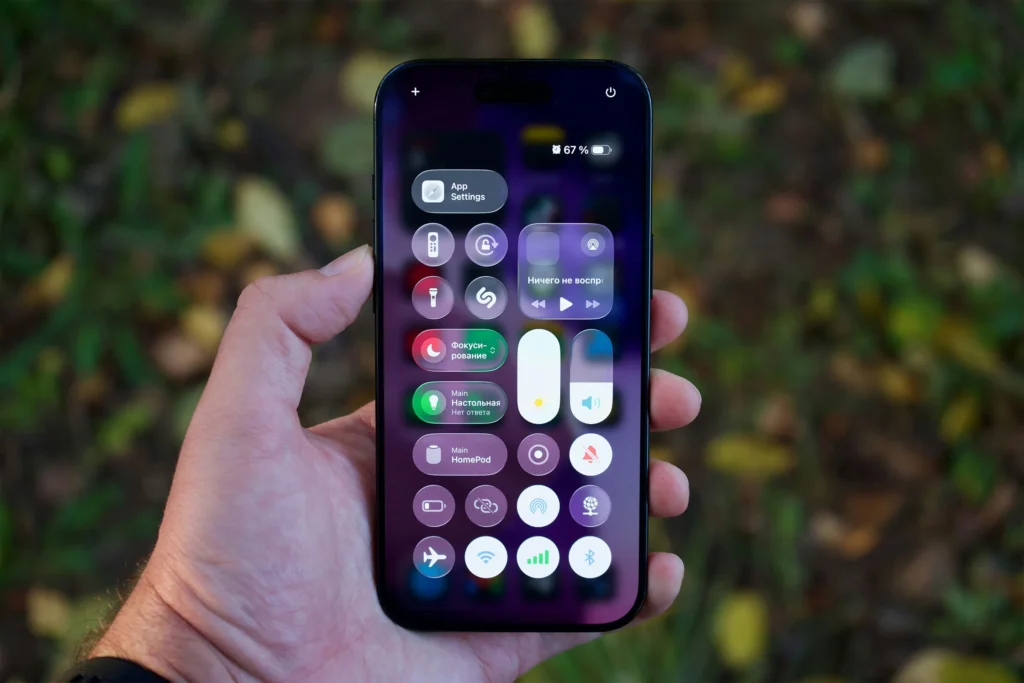
Automatic brightness is a feature designed to make your device more intuitive and user-friendly. By adjusting the screen’s brightness according to surrounding light, it reduces eye strain and helps conserve battery life. While this feature is useful, many users notice their devices suddenly dimming or brightening at unexpected times, which can be frustrating.
How Auto-Brightness Works
Auto-brightness relies on sensors embedded in your device, often located near the front-facing camera. These sensors detect ambient light levels and signal the system to adjust the display accordingly. For instance, on a sunny day, the screen will brighten to maintain readability. Conversely, in a dim room, the brightness lowers to prevent eye fatigue.
Beyond ambient light, modern devices often incorporate learning algorithms. This means your device can track your manual brightness adjustments over time, anticipating your preferred brightness levels for specific lighting conditions. However, if the system misinterprets these adjustments or the sensor behaves incorrectly, the result can be erratic brightness changes.
For related display issues, you may also explore
[Screen flickers by itself: should you be concerned?].
Benefits of Automatic Brightness
Automatic brightness is not just about convenience. Its advantages include:
- Battery Optimization: Lowering brightness when less is needed saves energy.
- Comfort for Your Eyes: Adjusting the screen to ambient conditions minimizes strain.
- Hands-Free Convenience: Eliminates the need for frequent manual adjustments.
Even with these benefits, understanding the limits and potential problems of auto-brightness is essential for troubleshooting unexpected behavior.
Why Brightness Changes Automatically Unintentionally
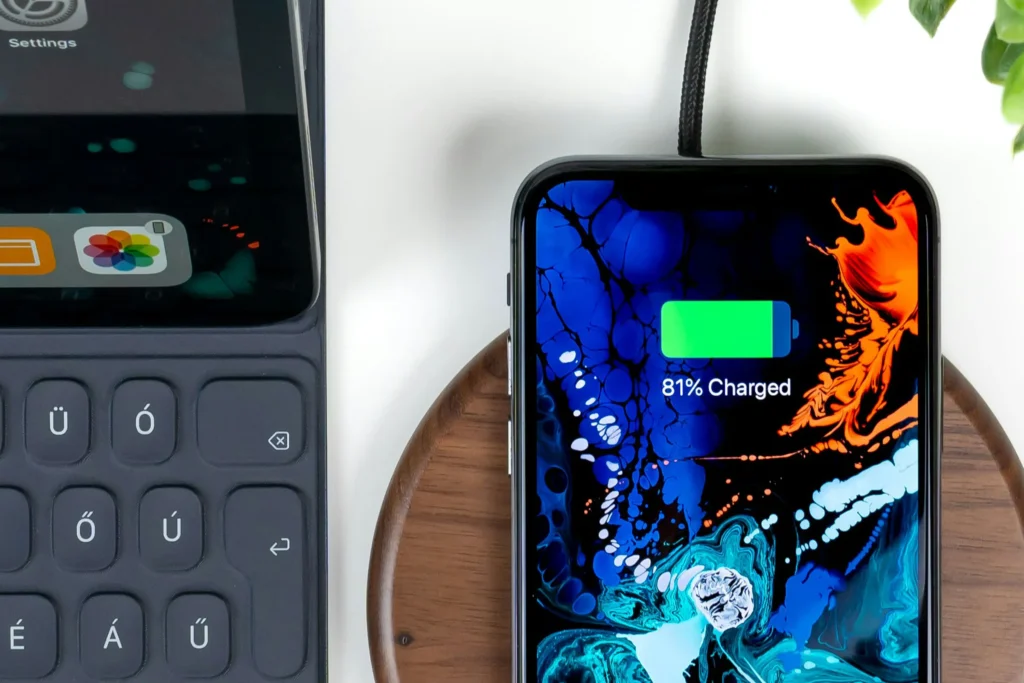
Unexpected brightness fluctuations can occur even in consistent lighting conditions. Understanding these causes can help you manage the problem effectively.
Ambient Light Sensor Malfunctions
The most common culprit is the ambient light sensor. Over time, dirt, dust, or even a screen protector can block or partially obstruct the sensor. Additionally, hardware degradation or misalignment can cause inconsistent readings.
For example, if your phone is in a tight case that covers part of the sensor, the screen might become overly bright indoors or dim outdoors. These small physical factors often go unnoticed, but they have a noticeable impact on display behavior.
Software and App Conflicts
Device software updates can reset your brightness preferences. Occasionally, certain apps may override auto-brightness settings, causing abrupt changes. For instance, video streaming apps sometimes adjust brightness to optimize contrast for HDR content, which may feel like erratic screen behavior.
Users experiencing app interference may also find insights in
[Wi-Fi keeps dropping during streaming: what’s causing it?].
Adaptive Display and Content Adjustments
Some devices use adaptive display technologies, such as HDR or adaptive color schemes, to enhance visual experience. While this improves viewing quality for media, it can result in sudden brightness fluctuations, especially during video playback or gaming. These changes may seem irregular but are often part of the display optimization.
Common Scenarios Where Auto-Brightness Feels Problematic
- Transition from Bright Outdoors to Dim Indoors: Your device may lag in adjusting brightness, temporarily straining your eyes.
- Nighttime Reading: Automatic dimming may make the screen too dark, leading users to adjust brightness manually.
- Watching HDR Videos: Bright highlights or dark shadows may cause the display to appear inconsistently lit.
These scenarios illustrate why auto-brightness isn’t always perfect. Recognizing the context helps distinguish between normal adjustments and actual malfunctions.
Fixing Unexpected Brightness Changes

Addressing brightness issues often requires a combination of software adjustments, hardware checks, and proper settings management.
Sensor Calibration
Calibrating the ambient light sensor ensures accurate readings. This can involve:
- Cleaning the sensor area to remove fingerprints or dust
- Removing obstructions such as thick cases or screen protectors
- Rebooting the device after calibration for optimal sensor performance
Proper calibration often resolves minor fluctuations without further intervention.
Adjusting Settings
Sometimes, disabling auto-brightness temporarily can help identify if the problem stems from the sensor or software. Checking app permissions is equally important, as some apps can override system brightness. If the issue persists, reviewing recently installed apps or restricting those with display control can prevent conflicts.
Hardware Inspection
When adjustments fail, the underlying issue may be physical. Inspect the front panel and sensor area for cracks or scratches, and consider professional inspection if the problem continues. Using manufacturer-approved accessories ensures that sensor accuracy is maintained.
Tips for Maintaining Consistent Brightness
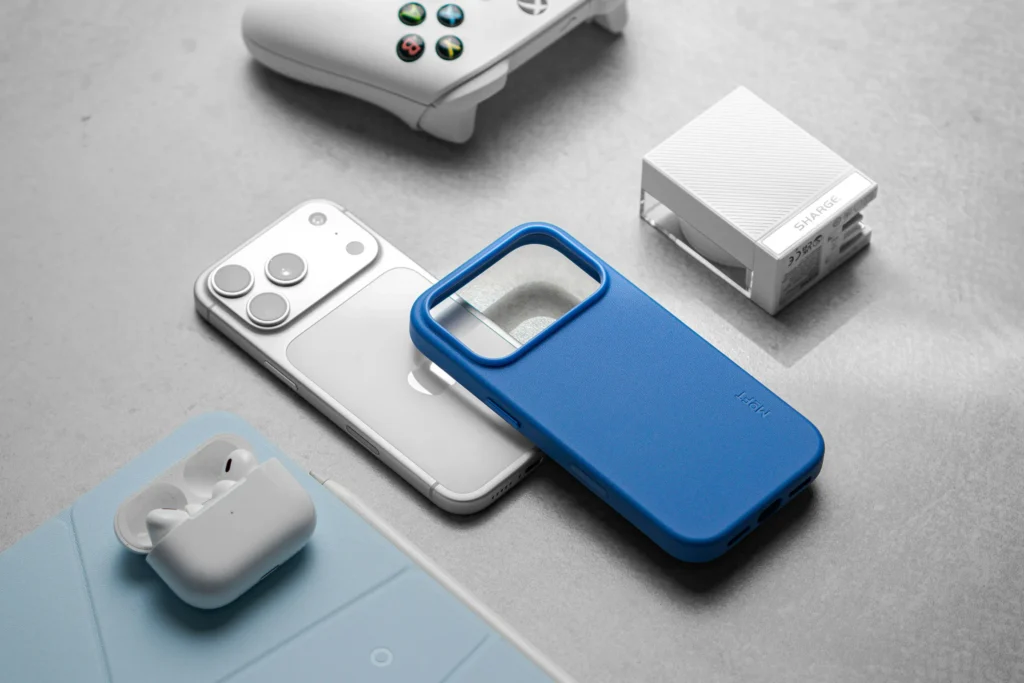
While fixing immediate issues is critical, adopting habits to maintain screen consistency can prevent future problems.
Manual Brightness Control
Occasionally, manually setting the brightness is more reliable than auto-adjustments. Combining manual control with adaptive brightness can offer a balance between convenience and consistency.
Optimize Device Settings for Battery and Comfort
| Setting | Recommendation |
|---|---|
| Maximum Brightness | Avoid using 100% continuously |
| Adaptive Display | Enable for dynamic adjustments only when necessary |
| Dark Mode | Useful in low-light conditions to reduce perceived brightness fluctuations |
For battery-related impact, see
[Battery drains fast without use: is something wrong?].
Maintain Hardware and Accessories
Keeping the sensor area clean, using appropriate cases, and regularly updating the system helps ensure that brightness behavior remains predictable.
Advanced Troubleshooting for Erratic Brightness
Even after basic fixes, some users continue to experience unexpected brightness changes. Here are advanced strategies to address persistent issues.
System Updates and Firmware
Device updates often include fixes for sensor behavior and display algorithms. If your brightness still fluctuates after calibration, check for pending updates:
- Check OS Updates: Navigate to your device’s settings and ensure your system is up to date.
- Update Display Drivers (for PCs): If you’re using a laptop, outdated GPU drivers can interfere with adaptive brightness.
- Firmware for Smartphones: Some devices have firmware updates specifically targeting screen and sensor behavior.
Users may also refer to [Screen flickers by itself: should you be concerned?] for display-related update issues.
App-Level Brightness Overrides
Some apps can override system brightness, causing sudden changes. Common culprits include:
- Video streaming apps that adjust brightness for HDR content
- Reading apps with night mode or adaptive display settings
- Games that optimize contrast and brightness dynamically
Pro Tip: Temporarily restrict display permissions for apps to identify conflicts.
Preventive Measures for Consistent Brightness
Prevention is always better than repeated troubleshooting. Follow these best practices:
Regular Sensor Maintenance
- Clean the sensor area weekly to remove fingerprints, dust, or debris
- Avoid cases or screen protectors that obstruct the sensor
Optimize Brightness Settings
- Set maximum brightness limits to avoid extreme changes
- Enable adaptive brightness only in dynamic lighting environments
- Use night mode or dark themes to reduce strain in low light
Monitor App Permissions
Regularly review which apps have display control and revoke permissions if unnecessary. This prevents unexpected overrides.
Impact on Battery and Device Longevity
Erratic brightness not only annoys users but also affects battery life. Continuous high brightness, or frequent adjustments by the sensor, can drain the battery faster.
Recommendations
| Impact | Recommended Action |
|---|---|
| Battery Drain | Keep auto-brightness enabled but capped at safe levels |
| Screen Wear | Avoid constant maximum brightness for prolonged periods |
| User Comfort | Adjust manually when lighting conditions are stable |
Expert Tips for Long-Term Display Stability
Calibrate Your Sensor Regularly
- Some devices allow manual calibration through developer options
- Periodic calibration ensures sensors respond accurately to ambient light
Minimize App Overrides
- Check which apps can modify system brightness
- Revoke unnecessary permissions to prevent unexpected fluctuations
Optimize Device Settings
- Set a reasonable maximum brightness limit
- Use battery saver mode to reduce screen intensity automatically
- Consider dark mode for apps and system UI to reduce overall brightness usage
Refer to [Battery drains fast without use: is something wrong?] to understand how high brightness affects battery longevity.
Preventive Maintenance Checklist
| Task | Frequency | Notes |
|---|---|---|
| Clean ambient light sensor | Weekly | Avoid dust and fingerprints |
| Review app brightness permissions | Monthly | Prevent app conflicts |
| Check for firmware updates | Monthly | Include display driver updates for PCs |
| Monitor battery usage | Weekly | Ensure high brightness doesn’t drain battery unnecessarily |
This checklist ensures your device maintains stable brightness while optimizing battery life and user comfort.
Common Misconceptions About Automatic Brightness
Myth 1: Auto-Brightness Always Saves Battery
While adaptive brightness generally conserves battery, if sensors are blocked or misreading ambient light, the device may overcompensate, causing unnecessary battery drain.
Myth 2: Brightness Fluctuations Damage Screens
Erratic brightness doesn’t physically damage modern screens. However, prolonged use at maximum brightness can contribute to screen wear and higher battery consumption.
Myth 3: Turning Off Auto-Brightness Solves All Problems
Disabling adaptive brightness may stop fluctuations temporarily, but underlying sensor issues or app conflicts remain unresolved. Proper calibration and selective app permissions are the more reliable solution.
FAQs
Why does my brightness fluctuate in stable lighting?
Likely causes include a blocked or misaligned sensor, software glitches, or app interference.
Can auto-brightness save battery?
Yes, when functioning correctly, it reduces energy usage by adjusting brightness to environmental conditions.
Is turning off auto-brightness safe?
Yes, but you’ll need to manually adjust brightness to suit changing light conditions.
Can apps affect brightness?
Yes, apps with display permissions can temporarily alter screen brightness.
My screen keeps brightening even in dark rooms, what should I do?
Check sensor obstructions, app overrides, and consider temporary manual adjustment.
Can brightness fluctuations damage my screen?
Not directly, but prolonged high brightness can contribute to faster battery drain and minor screen wear.
Why does my device behave differently in sunlight vs indoors?
Auto-brightness uses ambient light sensors, which react to varying light conditions. Extreme differences may feel erratic.
Should I turn off adaptive brightness completely?
Only if sensor or app conflicts persist; otherwise, adaptive brightness saves battery and enhances comfort.
My device changes brightness even when auto-brightness is off. Why?
Some apps may override system settings, or the sensor may be misreading light due to obstructions.
Can brightness fluctuations affect my device warranty?
Generally no, unless the device is physically damaged. Sensor or display replacement may be required in rare cases.
How do I know if my device sensor is faulty?
Persistent erratic behavior, delayed response, or abnormal dimming/brightening even in stable lighting conditions indicates sensor issues.
Is adaptive brightness better than manual?
In most cases, yes. Adaptive brightness balances comfort and battery efficiency if sensors and apps function correctly.
Key Takeaways
- Sensor Health Matters: Dust, covers, and screen protectors can mislead sensors, causing unexpected brightness changes.
- App Conflicts are Common: Multiple apps adjusting brightness can override system settings.
- Firmware and Updates: Keeping your device updated ensures proper sensor and display performance.
- Battery Impact: High brightness or frequent fluctuations can drain battery faster.
- Preventive Care: Regular calibration, monitoring app permissions, and periodic sensor cleaning maintain stable brightness.