Table of Contents
Introduction: Why Volume May Be Low Even at Maximum
Have you ever set your headphones to maximum volume, only to find the sound still too quiet? Volume is low at maximum is an issue that can be frustrating whether you are listening to music, attending online classes, or gaming. While it might seem like a simple hardware problem, there are multiple potential causes, including settings misconfigurations, device limitations, earwax buildup, or headphone defects.
Understanding the root causes can save time and prevent unnecessary replacements. This article explores the most common reasons for low headphone volume and provides practical solutions.
Common Causes
1. Device Settings
Audio Balance
- Devices often allow users to adjust left-right balance.
- If the balance is set incorrectly, sound may be quieter in one ear or both channels may seem low.
- Tip: Check system settings:
- Windows: Sound → Output → Balance
- macOS: System Preferences → Sound → Output → Balance
- Android/iOS: Accessibility → Audio/Visual → Balance
Volume Limitations
- Smartphones or PCs sometimes enforce volume limits for hearing protection.
- Check for volume limit or safety settings in device settings or music apps.
2. Earwax or Obstruction
- Physical blockage in earbuds or over-ear headphones can drastically reduce sound output.
- Earwax, dirt, or dust accumulation inside the ear tips or speaker mesh can muffle audio.
- Cleaning tip: Use a soft brush or lightly dampened cloth to remove debris.
Example: One user noticed sound was low after months of use. Cleaning the silicone tips restored full volume.
3. Headphone Driver Issues
- Internal speaker drivers may degrade over time, especially with heavy bass or high volumes.
- Worn-out drivers can produce low audio output despite max device volume.
- Wireless earbuds can also experience channel desynchronization, making one side quieter than the other.
4. App or Media File Problems
- Some audio files are recorded at low volume, limiting playback loudness.
- Streaming apps may have dynamic range compression that reduces perceived volume.
- Tip: Test multiple apps and audio sources to isolate the issue.
5. Connectivity Issues (Wireless Headphones)
- Bluetooth or wireless interference can reduce audio output temporarily.
- Low battery in wireless earbuds often affects volume or balance.
- Firmware glitches can also reduce output, requiring updates or resets.
6. Device Hardware Limitations
- Older smartphones, laptops, or PCs may not supply enough power for high-impedance headphones.
- Using amplifiers or DACs can help high-impedance models reach adequate volume.
Step 1: Check Device Settings
Before assuming your headphones are broken, verify your device settings:
Adjust Audio Balance
- Ensure balance is centered for left and right channels.
- On Windows: Settings → System → Sound → Output → Device Properties → Balance.
- On Mac: System Preferences → Sound → Output → Balance.
- On Android/iOS: Settings → Accessibility → Audio/Visual → Balance.
- Case Study: A user complained of low volume in the right earbud. Adjusting balance restored full audio output.
Disable Volume Limiters
- Many smartphones implement volume limiting to prevent hearing damage.
- Check music apps or system settings for “Volume Limit” or “Safe Listening” features.
- Toggle off limits temporarily to test if volume improves.
Step 2: Inspect Headphones Physically
Check for Blockages
- Examine earbud tips, mesh, and ports for dust, dirt, or earwax.
- Clean gently using:
- Soft-bristled brush
- Microfiber cloth
- Cotton swab lightly dampened with isopropyl alcohol
- Example: After cleaning mesh in an over-ear headset, one user restored full audio output that was previously low.
Inspect the Cable
- Look for bends, frays, or partially exposed wires near the jack or earbuds.
- Minor twists or movement can indicate a broken internal wire, often causing volume drops.
- Repair or Replacement: Soldering broken wires or replacing detachable cables can restore normal volume.
Step 3: Test on Multiple Devices
- Plug headphones into different devices (phone, laptop, tablet) to identify if the issue is with the headphones or device output.
- Observation: If volume is low across all devices → headphones likely at fault.
- If volume is normal on other devices → the original device may have software or hardware limitations.
Step 4: Software & App Checks
Reset App Settings
- Media apps may apply equalizers or dynamic range compression that reduce perceived volume.
- Reset or disable EQ and test playback again.
Update Drivers or Firmware
- For wired headphones with USB DACs or audio interfaces, ensure latest drivers are installed.
- Firmware updates for headphones can fix issues related to internal amplifiers or channel balance.
Step 5: Amplification & Impedance Check
- High-impedance headphones (>32Ω) may sound quiet on low-powered devices.
- Solutions:
- Use a portable headphone amplifier
- Connect to devices with higher output voltage
- Tip: This step is crucial for audiophile-grade headphones and studio monitors.
Fixing Wireless Headphones
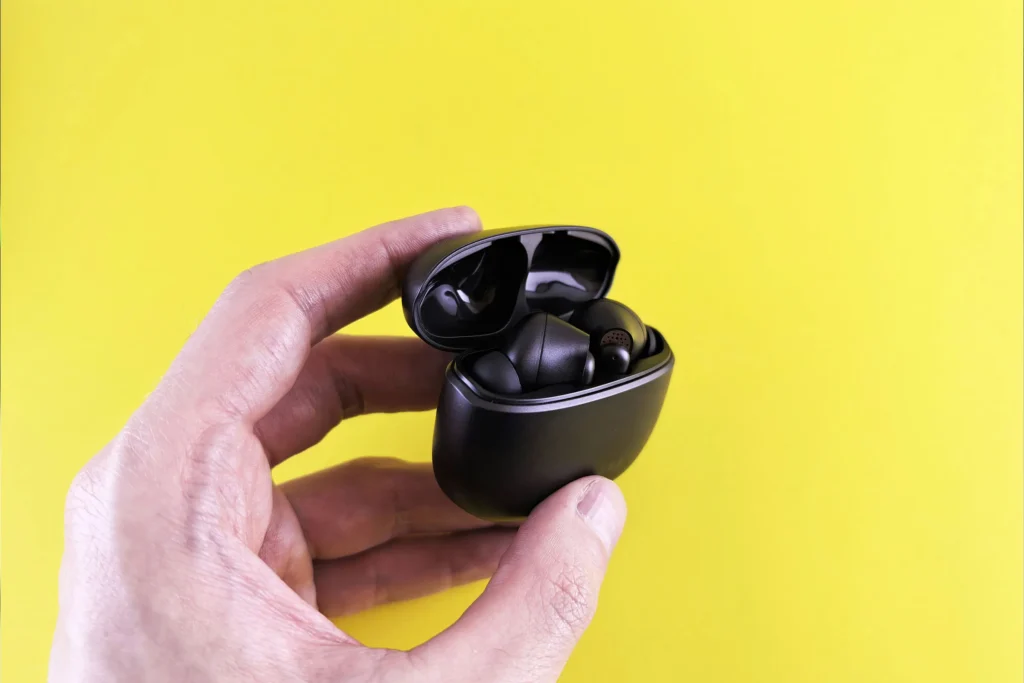
Wireless headphones often face volume issues even at maximum due to connectivity, battery, or firmware problems rather than physical damage. Addressing these systematically can restore full audio output.
1. Battery and Charging Issues
Low Battery Effects
- Wireless earbuds rely on internal batteries for both channels.
- If one earbud has low charge, it may reduce volume or stop output completely.
- Case Example: User reported the left earbud being quieter; fully charging both earbuds restored balance.
Proper Charging Habits
- Always charge both earbuds fully.
- Avoid using one earbud excessively without recharging the other.
- Inspect charging contacts in the case for dirt or corrosion.
2. Bluetooth Connectivity Problems
Interference
- Bluetooth operates at 2.4 GHz, which can overlap with Wi-Fi, microwaves, or other devices.
- Move away from potential interference sources and ensure earbuds are within 10 meters (33 feet) of the paired device.
Pairing and Signal Loss
- Unpair and re-pair the earbuds to the device.
- Ensure no other devices are actively connected, which can reduce volume in one channel.
- Some earbuds support single-ear operation; improper pairing may mute one side.
3. Firmware and Software Updates
- Earbuds receive updates that can fix volume synchronization issues.
- Use the manufacturer’s app to check for updates.
- Reset to factory settings if issues persist.
Example: After a firmware update, a user restored both earbuds to normal volume, fixing one-sided audio.
4. Device Compatibility and Settings
Device Audio Settings
- Confirm stereo output is enabled and mono audio is off.
- Adjust balance sliders if your device offers them.
OS Considerations
- iOS, Android, Windows, and macOS handle Bluetooth differently.
- Older devices may not provide enough power to high-impedance earbuds, affecting maximum volume.
5. Preventive Tips
- Battery Maintenance: Keep earbuds charged and avoid deep discharge.
- Physical Protection: Use a case to protect against drops, moisture, and temperature extremes.
- Firmware Updates: Regularly check for software updates to maintain volume stability.
- Avoid Interference: Keep away from strong Wi-Fi signals or multiple connected devices.
Quick Recap
Wireless headphone volume issues are often battery, connectivity, or firmware related. Proper charging, pairing, firmware updates, and device settings can restore full volume. Preventive measures ensure consistent stereo sound and longer device lifespan.
Advanced Troubleshooting
If volume remains low even after standard fixes, deeper investigation is necessary.
1. Check Internal Drivers (Wired or High-End Wireless)
- Some headphones have damaged or misaligned internal drivers, reducing volume.
- High-impedance models may sound quieter on low-powered devices.
- Solution: Professional repair or using an external amplifier for wired headphones.
2. Examine Connection Cables and Jacks
- Loose jacks or damaged USB/3.5mm connectors can reduce output.
- Test on multiple devices to isolate the issue.
3. Audio Codec Issues (Wireless)
- Bluetooth headphones rely on SBC, AAC, aptX, or LDAC codecs.
- Mismatch between headphones and device may reduce perceived volume.
- Ensure device supports the headphone’s preferred codec.
Frequently Asked Questions (FAQ)
Can software updates reduce headphone volume?
Yes, system or app updates may reset audio settings, EQ, or stereo balance. Always check settings after updates.
Why does volume differ between apps?
Streaming apps, games, or media players may apply compression or normalization, affecting output.
Test with multiple sources to confirm whether it’s the headphone or content.
Is low volume a reason to replace headphones?
Only after ruling out device, firmware, battery, and cleaning issues should replacement be considered.
Can battery imbalance affect wireless headphone volume?
Absolutely. Both earbuds must be sufficiently charged; otherwise, one may output quieter sound.
Preventive Tips
- Regular Cleaning: Remove dirt from ear tips and ports.
- Proper Storage: Use cases to prevent physical damage.
- Keep Firmware Updated: Maintain compatibility and fix bugs.
- Avoid High-Interference Zones: Limit simultaneous device connections to maintain stable volume.
- Monitor Battery Levels: Prevent deep discharge and ensure balanced charging for wireless earbuds.
Conclusion
A low headphone volume at maximum can result from device settings, earwax, connectivity issues, firmware bugs, driver wear, or battery imbalance. By systematically following troubleshooting steps—checking balance, cleaning, testing devices, updating firmware, and monitoring battery—you can restore full sound output.
Preventive care ensures consistent audio quality and longer device lifespan, while internal linking to the parent pillar article provides a comprehensive support network for users. Following these guidelines maintains a balanced listening experience and addresses most cluster-related audio problems efficiently.