Table of Contents
Modern smartphones, laptops, and wireless headsets rely heavily on microphones. Whether you are making a call, recording a voice message, joining a video meeting, or using voice assistants, the microphone plays a critical role in daily communication.
However, many users encounter a frustrating problem: the microphone stops working unexpectedly. One moment everything sounds normal, and the next moment your voice is no longer detected. Sometimes the issue appears only during calls. Other times it affects recordings, voice chats, or specific apps.
When a microphone stops working, people often assume the device is broken. In reality, the cause is often much simpler. Temporary software glitches, permission conflicts, wireless routing issues, or even small dust particles can interfere with microphone functionality.
Understanding why a microphone stops working randomly is the first step toward fixing the issue quickly and avoiding unnecessary repairs.
This guide explains the most common causes, how to diagnose the problem, and what you can do to restore your microphone functionality.
Why Does a Microphone Stop Working Randomly?
When a microphone stops working, the cause typically falls into one of three categories: software problems, connection conflicts, or hardware issues.
Many modern devices process audio through multiple layers of software and hardware systems. If any part of this chain fails temporarily, the microphone may stop capturing sound.
Several typical situations include:
- The microphone works in some apps but not others
- Voice recordings work but calls do not
- Bluetooth headsets connect but the microphone is silent
- The microphone stops working after a system update
These symptoms suggest that the microphone itself may not be broken. Instead, the issue often lies in system settings or audio routing.
Understanding the underlying cause helps determine whether the problem is temporary or something that requires repair.
Temporary Software Glitches
One of the most common reasons a microphone stops working randomly is a temporary software glitch.
Smartphones and computers continuously run background processes. Occasionally, an audio process may freeze or fail to communicate properly with the operating system.
When this happens:
- the device may stop detecting microphone input
- apps may fail to access the microphone
- voice recording becomes silent
A simple restart often resolves this issue because it resets the audio subsystem and clears temporary errors.
Software glitches are especially common after long device uptime or heavy multitasking.
App Microphone Permission Conflicts
Modern operating systems strictly control microphone access to protect user privacy. Apps must request permission before they can use the microphone.
If permissions change or conflict occurs, the microphone stops working within specific applications.
For example:
- A messaging app cannot detect audio input
- A video conferencing tool shows “microphone unavailable”
- Voice recording apps fail to capture sound
In these situations, the microphone hardware still works, but the app cannot access it.
Checking microphone permissions in the system settings usually resolves the issue.
Background Apps Taking Control of the Microphone
Some apps maintain constant microphone access in the background. Voice assistants, messaging services, and certain recording tools may temporarily control the microphone.
When another app occupies the microphone channel, a second app may fail to activate it.
In these situations, the microphone stops working randomly, especially when switching between apps.
Common examples include:
- Voice assistants running in the background
- Meeting apps that remain active after calls
- Recording apps not properly closed
Closing background apps often restores normal microphone function.
Bluetooth Audio Routing Problems
Wireless devices introduce another potential reason why a microphone stops working.
When Bluetooth headphones or speakers connect to a device, the operating system may route microphone input through the Bluetooth accessory instead of the internal microphone.
If the accessory microphone is malfunctioning or muted, the device may appear to have no working microphone.
Users often experience this during calls when:
- Bluetooth headphones connect automatically
- the headset microphone is muted
- the device chooses the wrong audio source
In these cases, disconnecting Bluetooth accessories immediately restores the microphone.
Software Problems That Cause a Microphone to Stop Working
Software issues are responsible for a large percentage of cases where a microphone stops working randomly. Operating systems manage complex audio frameworks that determine which device captures sound and which app receives that input.
When system processes misbehave, the microphone may temporarily stop responding even though the hardware remains functional.
Understanding these software factors helps identify whether the problem is temporary or persistent.
System Bugs After Updates
Operating system updates sometimes introduce temporary compatibility issues.
After a software update, users may notice that their microphone stops working during certain tasks such as voice calls, messaging apps, or video recordings.
Updates can affect:
- audio drivers
- microphone permissions
- Bluetooth routing
- background process management
These changes occasionally cause microphone behavior to become unstable until the system fully adjusts or receives a patch update.
In many cases, restarting the device or reinstalling problematic apps resolves the issue.
Audio Routing Errors
Modern devices support multiple audio sources, including internal microphones, wired headsets, and Bluetooth accessories.
When the operating system becomes confused about which device should capture audio, the microphone stops working temporarily.
Audio routing errors may occur when:
- headphones are plugged in and removed quickly
- Bluetooth devices reconnect automatically
- multiple audio devices are paired simultaneously
In these situations, the system may attempt to use a microphone that is no longer active.
Disconnecting external audio devices and reconnecting them often resolves the routing conflict.
App-Specific Audio Configuration Issues
Some apps use their own audio processing systems rather than relying entirely on the operating system.
Video conferencing tools, streaming apps, and gaming software may modify microphone behavior internally.
If their configuration becomes corrupted or outdated, the microphone stops working only inside that particular app.
This explains why users sometimes observe that:
- the microphone works in voice recorder
- the microphone fails in one specific app
Reinstalling or updating the affected application typically resolves this issue.
Hardware Issues That May Cause Microphone Failure
Although software issues are common, physical problems can also cause the microphone to stop working.
Most devices contain very small microphone openings that capture sound waves. These openings can become blocked by dust, lint, or debris over time.
Environmental conditions may also affect microphone performance.
Understanding hardware risks helps determine whether a repair might be necessary.
Dust or Debris Blocking the Microphone
The microphone opening on most smartphones is extremely small. Even tiny particles can partially block sound from reaching the microphone sensor.
When this happens, users may notice that:
- their voice sounds distant
- recordings become muffled
- the microphone appears to stop working during calls
Carefully cleaning the microphone opening with a soft brush or compressed air often restores normal audio clarity.
Water or Moisture Exposure
Moisture is another factor that can cause the microphone to stop working.
Water can temporarily disrupt microphone membranes or electrical contacts.
This may happen if the device was exposed to:
- rain
- sweat
- humidity
- accidental spills
In many cases, the microphone begins working again after the device fully dries. However, repeated moisture exposure can cause permanent damage.
Internal Connection Problems
Inside a smartphone or headset, the microphone connects to the main circuit board through extremely small components.
A drop or strong impact may loosen these connections.
When this occurs, the microphone stops working intermittently, especially if the device is moved or shaken.
These issues usually require professional repair.
Microphone Component Failure
Although rare, the microphone component itself can fail over time.
Symptoms of hardware failure include:
- complete silence during recordings
- microphone not detected by the system
- the microphone stops working across all apps
When the microphone consistently fails under every condition, hardware replacement may be necessary.
Why Microphone Stops Working During Calls but Not Recordings
A confusing situation many users experience is when the microphone stops working during calls, but voice recordings still capture sound normally.
At first glance, this may appear to be a hardware problem. However, the explanation is usually related to how different apps access and process audio.
Most devices allow multiple audio paths. Phone calls, messaging apps, video meetings, and voice recorders may each use separate microphone channels or permissions. Because of this architecture, the microphone stops working in one context while remaining functional in another.
Understanding this difference can help diagnose the problem quickly.
App-Specific Audio Permissions
Some applications require explicit permission to access the microphone.
If permission is denied, restricted, or revoked after an update, the microphone stops working inside that app while continuing to function elsewhere.
For example, a messaging application may lose microphone permission after a system update. In that situation, the microphone might work normally in voice recording apps but fail during voice messages or calls.
Checking the device’s privacy settings usually resolves this type of problem. Re-enabling microphone access for the affected app often restores normal functionality.
VoIP Applications Overriding System Audio
Internet calling apps such as messaging or video meeting platforms sometimes use their own audio engines instead of the standard operating system audio framework.
These applications attempt to optimize voice quality by controlling microphone gain, noise suppression, and echo cancellation. However, when configuration conflicts occur, the microphone stops working randomly inside the application.
Symptoms may include:
- the microphone works in normal phone calls but not in VoIP apps
- the microphone works after restarting the app
- the microphone stops working when switching between audio devices
Updating the application or resetting its settings can usually resolve these conflicts.
Bluetooth Call Routing Conflicts
Wireless audio devices introduce additional complexity to microphone behavior.
When Bluetooth headphones or speakers connect to a phone or computer, the operating system may route microphone input through the Bluetooth device rather than the built-in microphone.
If the headset microphone is muted, damaged, or not recognized properly, the microphone stops working during calls.
Users sometimes overlook this because audio playback still works through the headphones.
Disconnecting Bluetooth accessories is often the fastest way to verify whether routing conflicts are responsible.
Bluetooth audio connects but no sound plays: why?
How to Fix a Microphone That Stops Working
If your microphone stops working randomly, several simple troubleshooting steps can often restore functionality. Most microphone issues are temporary and can be solved without professional repair.
Before assuming hardware failure, it is important to test the most common fixes.
Restart the Device
A restart is the simplest and most effective solution when a microphone stops working unexpectedly.
Restarting resets the system’s audio services, closes background apps, and clears temporary software errors that may block microphone access.
Many audio glitches occur because the audio subsystem becomes unstable after extended use. A restart forces the operating system to reinitialize microphone drivers and audio routing.
Even though this step may seem basic, it resolves a surprisingly large number of microphone problems.
Check Microphone Permissions
Modern operating systems allow users to control which apps can access the microphone. If permissions are disabled or restricted, the microphone stops working inside those applications.
Navigate to the device’s privacy or permissions settings and confirm that the affected app is allowed to use the microphone.
After adjusting permissions, close the app completely and reopen it. This ensures the application reloads its audio configuration.
Disconnect External Audio Devices
External audio accessories sometimes interfere with microphone detection.
If wired headphones or Bluetooth devices are connected, the system may automatically redirect microphone input to those accessories. If the accessory microphone is unavailable, the microphone stops working entirely.
Try temporarily disconnecting:
- Bluetooth headphones
- wireless speakers
- USB microphones
- wired headsets
Once these devices are disconnected, test the built-in microphone again.
Clean the Microphone Opening
Dust accumulation is a surprisingly common reason a microphone stops working properly.
Because microphone openings are extremely small, debris can partially block sound waves from reaching the sensor.
Cleaning the microphone opening carefully can restore normal sound quality.
Use gentle methods such as:
- a soft brush
- compressed air
- a clean dry cloth
Avoid inserting sharp objects into the microphone hole, as this may damage internal components.
Reset System Audio Settings
If configuration errors accumulate, resetting audio settings may resolve persistent problems.
Some devices allow users to reset network or system settings without erasing personal data. This process clears Bluetooth configurations, audio routing preferences, and permission conflicts that may cause the microphone to stop working.
After resetting system settings, reconnect audio accessories and test the microphone again.
How to Test If Your Microphone Is Broken
When troubleshooting fails to restore microphone functionality, testing procedures can help determine whether the issue is software-related or caused by hardware damage.
These tests help confirm whether the microphone stops working in all situations or only under specific conditions.
Voice Recorder Test
The voice recorder test is one of the simplest ways to check microphone functionality.
Open a voice recording app and record a short message. If the playback captures your voice clearly, the microphone hardware is functioning correctly.
If the recording is silent or extremely faint, the microphone stops working at the hardware level or is severely obstructed.
Camera Video Test
Video recording apps also rely on the device’s microphone. Recording a short video clip allows users to test whether the microphone captures audio while using another system function.
If the microphone works during video recording but fails during calls, the issue is likely related to software configuration rather than hardware failure.
Safe Mode Testing
Many smartphones allow users to boot the device in safe mode. In this mode, only essential system applications run while third-party apps remain disabled.
Testing the microphone in safe mode helps determine whether an installed application is interfering with microphone access.
If the microphone stops working in normal mode but works in safe mode, a third-party app is likely responsible for the problem.
Cross-Device Testing
If possible, connect the microphone accessory to another device.
For example, a headset microphone can be tested on another phone, computer, or tablet. If the microphone functions normally on the second device, the issue likely originates from the original device’s software configuration.
If the microphone stops working on every device, the accessory itself may be defective.
When a Microphone Problem Indicates Hardware Damage
Although many cases where a microphone stops working are caused by software or configuration issues, there are situations where the hardware itself may be damaged.
Modern microphones are extremely small components integrated into complex devices. Because of their size and sensitivity, physical damage or environmental exposure can sometimes cause permanent failure.
Before assuming hardware damage, it is important to eliminate software causes first. However, several warning signs strongly suggest that the microphone stops working due to hardware failure.
The Microphone Stops Working Across All Apps
One clear indicator of hardware damage is when the microphone stops working in every application.
If the microphone fails in:
- phone calls
- voice recordings
- video recordings
- voice assistants
then the issue is unlikely to be caused by software settings.
When microphone input remains completely silent under all conditions, the internal microphone component may no longer function properly.
The Device Cannot Detect the Microphone
Some operating systems display microphone input levels or show when a microphone is active.
If the system fails to detect microphone activity entirely, it may indicate a broken microphone connection.
This situation can occur when:
- the microphone cable becomes disconnected internally
- the microphone chip fails
- the internal audio circuit board is damaged
When the microphone stops working at the system level, software fixes rarely resolve the issue.
Physical Impact or Drops
Devices that have experienced physical impact sometimes develop microphone problems afterward.
Even if the exterior appears undamaged, internal components can shift slightly after a drop. This may cause a loose connection between the microphone and the device’s main circuit board.
As a result, the microphone stops working intermittently, especially when the device moves.
These problems typically require professional inspection or repair.
Liquid Damage
Liquid exposure can permanently damage microphone components.
Even small amounts of moisture can corrode internal contacts or disrupt the microphone membrane.
If the microphone stops working after exposure to water, sweat, or humidity, internal damage may have occurred.
Some devices recover after drying completely, but repeated exposure often leads to permanent failure.
How to Prevent Microphone Problems
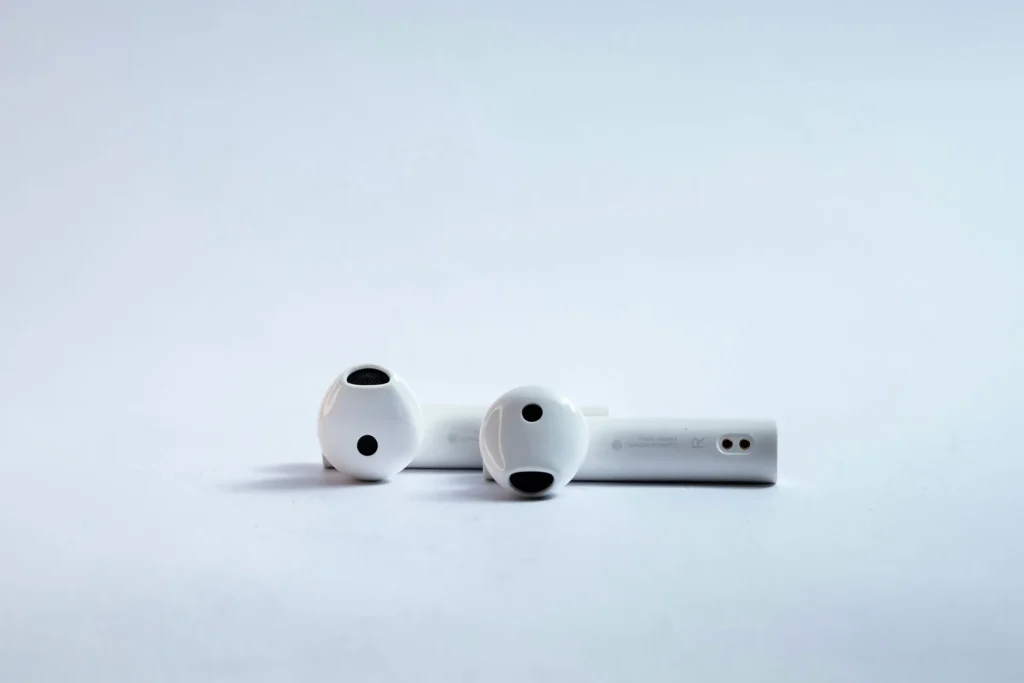
Preventing microphone problems is easier than repairing them. With proper care and maintenance, users can significantly reduce the chances that a microphone stops working unexpectedly.
Although microphones are small components, they remain vulnerable to dust, moisture, and system configuration issues.
Adopting a few simple habits can help maintain reliable microphone performance.
Keep Microphone Openings Clean
Because microphone holes are extremely small, debris can accumulate easily over time.
Lint from pockets, dust from the environment, and small particles may partially block the microphone opening. When this happens, the microphone may appear weak or stop working during calls.
Regularly checking and gently cleaning microphone openings helps maintain clear sound capture.
Avoid Moisture Exposure
Water remains one of the most common causes of permanent microphone damage.
To prevent situations where the microphone stops working, it is important to protect devices from excessive moisture.
This includes avoiding exposure to:
- rain
- steam from showers
- sweat during workouts
- accidental spills
Water-resistant devices offer some protection, but prolonged exposure can still cause internal damage.
Manage Bluetooth Connections Carefully
Wireless audio accessories sometimes introduce unexpected microphone issues.
When multiple Bluetooth devices are connected simultaneously, the system may route microphone input incorrectly. This may create situations where the microphone stops working during calls or recordings.
Disconnecting unused accessories and reconnecting devices when necessary helps avoid audio routing conflicts.
Install Updates Carefully
Software updates often improve system stability, but occasionally they introduce temporary bugs.
After major updates, some users notice that their microphone stops working randomly until the system is restarted or patched.
Restarting the device after an update and ensuring apps remain updated can help prevent compatibility issues.
Frequently Asked Questions
Why does my microphone stop working randomly on my phone?
If your microphone stops working randomly, the cause is usually related to software conflicts, Bluetooth routing issues, or temporary system glitches. Restarting the device and checking microphone permissions often resolves the problem.
Why does my headset microphone stop working?
Headset microphones may stop working due to damaged cables, Bluetooth connection issues, or incorrect audio routing settings. Testing the headset on another device can help determine whether the microphone itself is defective.
Can dust block a microphone?
Yes. Dust or debris can partially block the microphone opening and reduce sound input. In some cases, users believe the microphone stops working, when the real issue is simply obstruction.
Carefully cleaning the microphone opening can restore normal performance.
Why does the microphone work in recordings but not in calls?
This situation usually occurs when apps have different microphone permissions or audio routing settings. If the microphone stops working during calls but works in recordings, checking app permissions and restarting the device can often solve the issue.
When should I repair or replace the device?
If the microphone stops working in every application, fails all recording tests, and persists after system resets, the microphone hardware may be damaged.
At that point, professional repair or device replacement may be necessary.
Final Thoughts
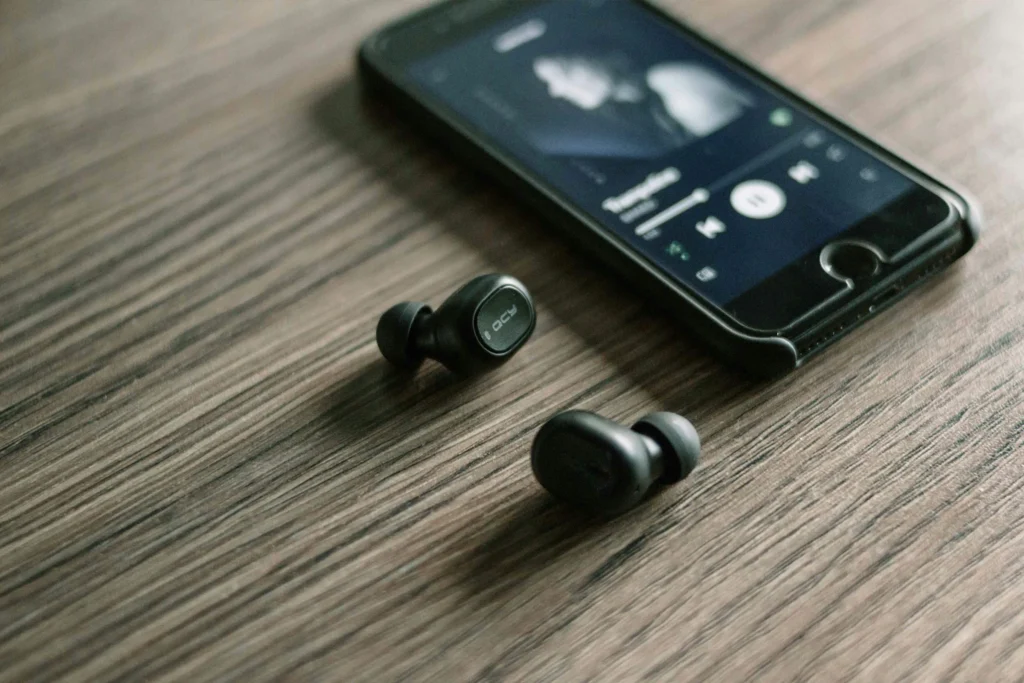
When a microphone stops working, it can interrupt communication, meetings, recordings, and daily tasks. Because microphones are essential for modern devices, sudden failures often feel alarming.
Fortunately, most cases where the microphone stops working randomly are not caused by hardware damage. Temporary software glitches, permission conflicts, or Bluetooth routing problems account for the majority of microphone issues.
By following systematic troubleshooting steps—such as restarting the device, checking permissions, disconnecting accessories, and testing microphone functionality—users can usually restore normal operation without professional repair.
Understanding the difference between software problems and hardware damage also helps prevent unnecessary device replacement.
With proper care, regular cleaning, and mindful device usage, users can greatly reduce the chances that their microphone stops working unexpectedly in the future.