
Table of Contents
Touchscreens have revolutionized the way we interact with devices, from smartphones and tablets to hybrid laptops. But when a touchscreen not responding in some areas, it can be incredibly frustrating, disrupting both work and entertainment. Users may notice parts of the screen completely unresponsive or erratic behavior such as ghost touches and delayed responses.
Understanding the underlying causes is crucial for resolving the problem efficiently. In this guide, we explore common causes of touchscreen issues, how to troubleshoot them, and practical fixes to restore full functionality.
1. Hardware Damage
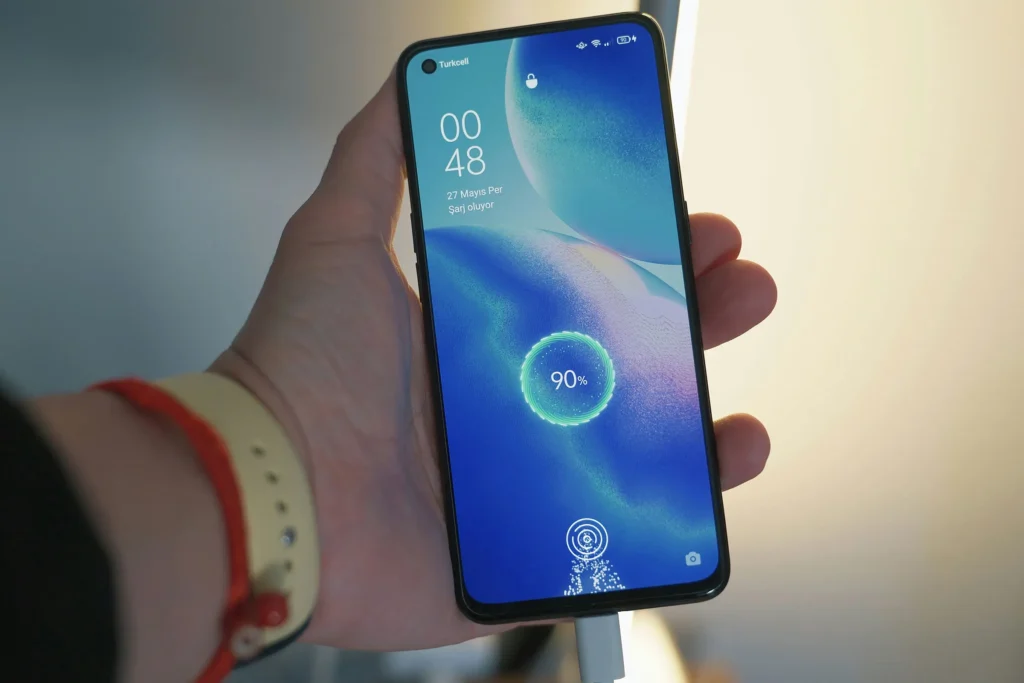
Hardware issues are among the most frequent reasons for a touchscreen to stop responding partially. Physical damage, even if minor, can affect the device’s digitizer—the layer responsible for detecting touch input.
Cracks and Impact
Cracks or impacts from accidental drops can interfere with touch detection in localized areas. Even if the screen appears only slightly damaged, the internal sensor may fail to register touch accurately. Users often report that the touchscreen works normally on undamaged zones but fails entirely over the affected regions. In such cases, replacing the touchscreen or digitizer is usually the most reliable solution. Professional repair is recommended, especially for high-end devices, to prevent further damage.
Liquid Damage
Water or other liquids can penetrate the device, causing short circuits or corrosion in the touch-sensitive layers. Symptoms include intermittent touch response, ghost touches, or total unresponsiveness in certain areas. Immediate steps include powering off the device, avoiding charging, and seeking professional repair to minimize long-term damage.
Internal Component Failure
Even without visible damage, internal components may degrade over time. A loose connection between the digitizer and the mainboard, or a failing touch controller, can lead to sections of the screen not registering input. Diagnosing these issues typically requires technical expertise and specialized tools.
Related hardware troubleshooting can also be explored in [Device doesn’t recognize accessories: why?].
2. Software Glitches
Not all touchscreen problems originate from hardware. Software-related issues, including operating system bugs, app conflicts, or firmware problems, can prevent certain areas from responding.
Operating System Bugs
After system updates, devices may experience temporary touchscreen irregularities. Users might notice that only specific areas fail to respond, or touches are delayed and inconsistent. Restarting the device, applying pending updates, or rolling back a problematic update can resolve many of these issues.
App Conflicts
Third-party applications that use screen overlays or accessibility features can interfere with touch detection. This is often observed with screen filter apps, custom launchers, or certain productivity apps. Testing the device in Safe Mode can help identify whether a particular app is causing the problem.
Firmware Issues
For devices like tablets and hybrid laptops, firmware controls the touch sensors. Corrupted or outdated firmware may cause intermittent dead zones or inconsistent touch behavior. Updating firmware through official channels is the safest approach.
For software troubleshooting on connected devices, refer to [Why devices disconnect randomly: is it a real problem?].
3. Calibration Problems
Touchscreen misalignment can also produce dead zones, especially after repair or replacement. If the touch sensors are misaligned, the device may fail to register touches accurately in certain areas.
Misaligned Sensors
Touch miscalibration can result from factory defects or improper reassembly after screen replacement. Calibration tools, where available, allow users to adjust touch sensitivity and accuracy. Multi-touch calibration apps can also help on tablets or devices that support stylus input.
Impact on Touch Accuracy
Poor calibration leads to inconsistent touch behavior, where the screen may respond in unexpected ways or fail to respond entirely in some regions. Ensuring proper calibration is critical for restoring full touchscreen functionality.
4. Dirt, Oil, or Screen Protector Issues
Physical obstructions on the screen surface can interfere with touch responsiveness.
Smudges and Residue
Finger oils, lotions, or dust accumulation can reduce the conductivity needed for capacitive touchscreens. Regular cleaning with a microfiber cloth and gentle cleaning solution can restore touch performance without requiring repairs.
Screen Protector Problems
Screen protectors, particularly thick or poorly applied tempered glass, can prevent certain areas from registering touch correctly. Testing the touchscreen without a protector can help determine if this is the source of the problem.
5. Battery and Power Factors
Power issues can subtly affect touchscreen performance, particularly in older devices or under heavy load.
Low Voltage
When a device operates with low battery levels, touch controllers may not receive sufficient voltage to function reliably, resulting in unresponsive areas.
Thermal Effects
Overheating during prolonged use or heavy charging can temporarily reduce touch sensitivity. Ensuring the device operates within recommended temperature ranges is important for consistent touch response.
Internal link suggestion: For related battery issues, see [Battery drains fast without use: is something wrong?].
6. External Interference
Sometimes, the touchscreen may be affected by electromagnetic interference (EMI) or nearby devices.
Electromagnetic Interference
Strong magnetic fields from other electronics, unshielded power sources, or even nearby wireless chargers can interfere with capacitive touch sensors. Users may notice that touch responsiveness improves when the device is moved away from the interference source.
Accessory Interference
Non-compatible styluses, magnetic cases, or peripheral devices can also affect touch detection. Testing the device without these accessories often restores proper functionality.
For accessory-related issues, see
[Device doesn’t recognize accessories: why?].
7. Advanced Troubleshooting Steps
If basic cleaning, software updates, and recalibration do not fix the problem, more advanced steps may be required.
Reboot and Safe Mode Testing
Restarting the device can resolve temporary glitches. Booting into Safe Mode helps identify if third-party apps are causing the unresponsiveness in certain areas.
Reinstall or Update Drivers/Firmware
On hybrid laptops and tablets, outdated or corrupted drivers can affect touchscreen behavior. Reinstalling or updating these drivers through official channels can restore full touch functionality.
Factory Reset as Last Resort
If all else fails, performing a factory reset can eliminate software-related causes. Ensure you back up all important data before proceeding.
Related device troubleshooting is discussed in
[Why devices disconnect randomly: is it a real problem?].
8. Preventive Measures
Preventing touchscreen issues can extend the life of your device and reduce frustration.
Proper Handling
- Avoid drops and impacts
- Keep liquids away from the device
- Remove the device from extreme temperatures
Regular Cleaning
Maintain a clean screen free from oils, dust, and residue. Use microfiber cloths and avoid harsh chemicals.
Use Compatible Accessories
- Only use approved screen protectors and styluses
- Avoid magnetic cases or other accessories that may interfere with touch
9. Frequently Asked Questions (FAQ)
Can a minor crack cause part of the touchscreen to stop working?
Yes, even small cracks can damage the digitizer, causing localized dead zones. Replacement is often required.
Will software updates fix touchscreen unresponsiveness?
Sometimes. Updates can resolve bugs, but if the issue is hardware-related, updates alone will not fix it.
How can I tell if the issue is hardware or software?
Testing in Safe Mode, performing a reboot, and checking for responsiveness across different apps can help differentiate between software glitches and hardware failure.
Can battery or heat affect touch sensitivity?
Yes, low battery or overheating can temporarily reduce touchscreen responsiveness. Avoid using heavy apps while charging or in direct sunlight.
For related battery issues, see
[Battery drains fast without use: is something wrong?].
10. When to Seek Professional Help
If the touchscreen remains unresponsive after cleaning, software updates, recalibration, and troubleshooting, professional repair is recommended. Qualified technicians can diagnose hardware failures, replace the digitizer, or repair internal connections safely.
11. Common Touchscreen Issues Checklist
Analyzing real-world scenarios helps illustrate common causes and effective fixes.
| Device Type | Problem Observed | Root Cause | Fix Applied | Result |
|---|---|---|---|---|
| Smartphone | Top-right corner unresponsive | Minor crack on digitizer | Replaced touchscreen | Full functionality restored |
| Tablet | Ghost touches in center area | Liquid residue under screen protector | Removed protector, cleaned screen | Normal touch response regained |
| Hybrid Laptop | Touch inputs delayed on left edge | Driver outdated | Updated touchscreen driver | Lag eliminated |
| Smartphone | Random dead zones after OS update | Software bug | Rolled back update and applied patch | Issue resolved |
See [Why devices disconnect randomly: is it a real problem?] for related device troubleshooting insights.
12. Step-by-Step Repair Guide

For users confident in DIY repairs, some steps can help restore touchscreen functionality safely.
Step 1: Clean the Screen Thoroughly
- Use a microfiber cloth with a small amount of water or screen-safe cleaner.
- Gently wipe across all areas, paying attention to previously unresponsive regions.
Step 2: Remove Screen Protector (if any)
- Temporarily remove any tempered glass or plastic protector.
- Test the touchscreen without it to see if response improves.
Step 3: Soft Reset and Safe Mode Test
- Power off the device, wait 30 seconds, and restart.
- Boot into Safe Mode to check for app conflicts affecting touch detection.
Step 4: Update Drivers or Firmware
- For tablets and hybrid laptops, check official manufacturer websites for driver updates.
- Apply updates carefully to avoid corrupting touch controller firmware.
Step 5: Factory Reset (Last Resort)
- Backup all data.
- Perform a full reset to eliminate software-related causes.
For battery-related considerations during troubleshooting, see [Battery drains fast without use: is something wrong?].
13. Preventive Measures Checklist

To minimize future touchscreen issues, follow these practical guidelines:
- Handle Devices Carefully: Avoid drops, impacts, and pressure points on the screen.
- Maintain Clean Screens: Regularly wipe off oils, dust, and dirt.
- Use Certified Accessories: Ensure screen protectors, styluses, and cases are compatible.
- Monitor Battery and Heat: Avoid using heavy apps while charging or in extreme temperatures.
- Keep Software Updated: Apply official OS and firmware updates promptly.
These steps not only preserve touch functionality but also extend the overall life of the device.
14. FAQ: Touchscreen not Responding in Some Areas

Q1: My touchscreen responds intermittently—should I replace it immediately?
Not necessarily. First, try cleaning, recalibration, software updates, and removing screen protectors. If issues persist after these steps, replacement is recommended.
Q2: Can using a stylus prevent touchscreen issues?
Yes, using a compatible stylus reduces finger oils and minimizes wear, but ensure it’s designed for your device to avoid false inputs.
Q3: Are all dead zones caused by hardware damage?
No. Software glitches, calibration errors, and external interference can all cause areas to become unresponsive without physical damage.
Q4: How can I test which areas are unresponsive?
Touchscreen diagnostic apps are available for smartphones and tablets. They display touch registration across the screen, highlighting dead zones for precise troubleshooting.
For additional audio-device troubleshooting, see [Bluetooth audio connects but no sound plays: why?].
Conclusion of Touchscreen not Responding in Some Areas
Touchscreen issues, especially when parts of the screen stop responding, can arise from a variety of hardware and software causes. By systematically understanding the problem—considering physical damage, software glitches, calibration issues, and external factors—most users can identify the root cause and apply the correct fix. Preventive measures and careful handling can also prolong touchscreen life and minimize future issues.