Table of Contents
Introduction: Why Headphones Work on One Side Only
Few issues are as annoying as headphones that only work in one ear. You might be enjoying music, attending an online class, or gaming, and suddenly your audio output disappears in one ear. Many people immediately assume the headphones are broken, but that’s not always the case.
Understanding the underlying causes is crucial. This problem can stem from physical damage, software settings, wireless interference, or even minor user habits. Most issues are repairable if diagnosed properly, and knowing the right steps can save you money and frustration.
Common Causes
1. Physical Damage
Worn Cables or Connectors
Wired headphones are extremely vulnerable to cable stress, especially near the jack or earbuds. Repeated bending or pulling can cause:
- Broken internal wires
- Loose solder connections
- Audio loss in one ear
For example, many users report that after storing their headphones tightly coiled in a bag, one earbud stops working entirely. This is one of the most frequent reasons for one-sided audio.
Internal Speaker Damage
Even minor moisture exposure, sweat, or accidental drops can damage one speaker driver:
- Sweat during workouts can corrode internal circuits
- Dropping earbuds can dislodge delicate speaker components
- High volume over long periods can burn out one speaker
2. Audio Jack or Port Problems
Dirty or Obstructed Jack
Smartphones, tablets, and laptops accumulate dust and lint in headphone ports. Even a small obstruction can prevent the plug from making full contact, causing one-sided audio. A quick cleaning with a soft brush or compressed air often solves this issue.
Loose or Bent Plug
A partially inserted or bent plug can result in:
- Intermittent audio in one ear
- Complete audio loss on the affected channel
Tip: Rotate the plug slightly and test. If this restores sound, the issue is physical contact, not the headphones themselves.
3. Software Settings
Audio Balance Settings
Devices allow users to adjust left-right audio balance, which can accidentally be set entirely to one side:
- Windows: Sound → Output → Balance
- macOS: System Preferences → Sound → Output → Balance
- Android/iOS: Accessibility → Audio/Visual → Balance
App-Specific Settings
Some media or conferencing apps have their own audio settings. Misconfigured channels may direct all sound to a single side, even if the headphones are perfectly functional.
4. Bluetooth / Wireless Issues
Low Battery
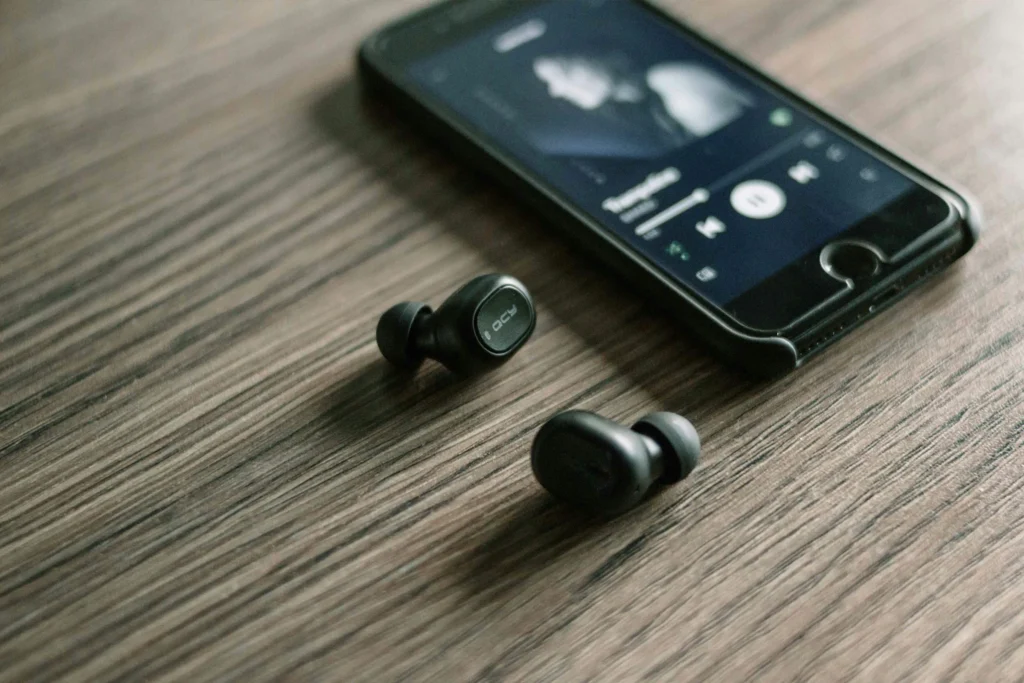
For wireless headphones, low battery levels can cause:
- Audio loss in one earbud
- Channel desynchronization
Interference
Bluetooth operates in the 2.4GHz band, which can conflict with:
- Wi-Fi routers
- Microwave ovens
- Other wireless devices
This interference can cause audio to drop in one ear temporarily.
Firmware Problems
Outdated firmware may create audio channel glitches or synchronization issues. Regular updates are essential for maintaining proper stereo function.
5. Compatibility Issues
- Some headphones may not fully support the device’s stereo output
- Mono-only adapters or faulty connectors can redirect sound to a single ear
- Verify manufacturer specifications and device requirements
Diagnosing the Problem
Before rushing to replace headphones, it’s essential to systematically diagnose the issue. Many “one-side only” problems are device or settings related, not broken hardware.
Step 1: Test on Multiple Devices
- Plug headphones into another device: phone, tablet, or computer.
- If the same earbud is silent → likely a headphone issue.
- If both earbuds work on a different device → original device, jack, or software settings are likely the culprit.
- Example: A user reported left-ear silence on their laptop but full sound on their phone. The cause? The laptop’s headphone jack was partially obstructed with dust.
Step 2: Swap Channels (for wired headphones)
- Gently twist the cable near the jack or earbud while audio plays.
- Audio returning in one ear during slight twists indicates a frayed wire inside the cable.
- This is a common scenario for portable users who coil their headphones tightly in pockets or bags.
Step 3: Inspect Cables and Ports
- Look for visible damage: bends, frays, exposed wires.
- Check headphone jacks for dust, lint, or corrosion.
- Ensure the plug is fully inserted into the port. Partial insertion is often overlooked.
Step 4: Verify Software Settings
- Ensure balance is centered on Windows, macOS, Android, or iOS.
- Disable mono audio or other accessibility settings.
- Reset app-specific audio settings for media players or communication software.
Fixing Wired Headphones
Once the problem is diagnosed, there are several practical solutions:
Cleaning the Jack and Plug
- Use compressed air or a soft brush to remove debris.
- Wipe metal contacts with isopropyl alcohol using a cotton swab.
- Test the headphones after cleaning to see if both sides work.
Tip: Avoid inserting sharp objects into the jack; this may worsen the problem.
Repair or Replace Damaged Cables
- If the cable is frayed or bent near the jack, minor repair is possible:
- Strip the insulation carefully and resolder broken wires (requires soldering skills).
- Alternatively, replace the cable if detachable, or replace the headphones entirely.
- Example: A gamer noticed that twisting a wired headset fixed one-ear silence temporarily. The permanent solution was replacing the cable.
Test with an Adapter or Splitter
- If the device jack is faulty, use a headphone adapter or USB-to-3.5mm converter.
- This bypasses a damaged port and restores stereo sound.
- Some devices may also require troubleshooting audio drivers for proper functionality.
Tips for Troubleshooting Wired Headphones
Avoid Cable Stress
- Do not coil tightly or pull by the cable.
- Store in cases or headphone pouches.
- Avoid repeated bending near connectors.
Protect from Moisture
- Sweat or humidity can corrode cables and drivers.
- Wipe headphones after workouts or exposure to rain.
Regular Maintenance
- Inspect cables and connectors periodically.
- Clean headphone jacks on devices occasionally to prevent obstruction buildup.
Quick Recap
- Diagnose systematically: multiple devices, check cable and port, inspect balance settings.
- Fix minor issues: cleaning, re-seating, or repairing cables.
- Replace only if hardware damage is irreparable.
Wired headphones, though more prone to physical damage, are usually easy to repair if you follow these systematic steps. Many users restore both channels without buying new headphones.
Fixing Wireless Headphones
Wireless headphones (Bluetooth or other radio frequency-based) often have one-sided audio issues that differ from wired headphones. These problems usually involve connectivity, battery, or firmware, rather than physical damage.
1. Battery and Power Issues
Low Battery Effects
- Wireless earbuds depend on internal batteries.
- If one earbud has a low charge, it may stop outputting sound while the other continues.
- Case example: A user reported the left earbud dying while the right continued playing; charging both earbuds fully resolved the issue.
Proper Charging Habits
- Charge both earbuds fully before use.
- Avoid using only one earbud frequently without recharging the other.
- Check charging contacts inside the case for dirt or corrosion.
2. Bluetooth Connectivity Problems
Interference
Bluetooth operates at 2.4 GHz, which can be crowded by:
- Wi-Fi networks
- Microwave ovens
- Wireless keyboards or mice
Solution: Move away from interfering devices, and ensure both earbuds are within the recommended range (usually 10 meters / 33 feet).
Pairing and Signal Loss
- Unpair and re-pair earbuds with your device.
- Ensure no other conflicting devices are actively connected to the earbuds.
- Some earbuds support single-ear operation, but improper pairing may disable one side.
3. Firmware and Software Updates
- Earbuds often receive updates to fix audio channel synchronization.
- Use the manufacturer’s app to check for updates.
- Reset earbuds to factory settings if updates don’t resolve the issue.
Example: After a firmware update, one user’s right earbud audio output normalized, restoring proper stereo sound.
4. Compatibility and Device Settings
Device Audio Settings
- Ensure stereo output is enabled in device settings.
- Disable mono audio or balance adjustments that shift sound entirely to one side.
Operating System Considerations
- iOS, Android, Windows, and macOS handle Bluetooth differently.
- Some older devices may inadvertently mute one channel if the Bluetooth protocol version is incompatible.
Preventive Tips for Wireless Headphones
Battery Management
- Keep earbuds charged in their case when not in use.
- Avoid completely draining the battery regularly, as this shortens lifespan.
Physical Protection
- Protect earbuds from drops, moisture, and extreme temperatures.
- Use carrying cases or pouches to prevent accidental damage.
Update Firmware Regularly
- Firmware updates often improve channel synchronization, battery management, and connectivity stability.
- Check the manufacturer’s app or website monthly.
Avoid Excessive Interference
- Keep earbuds away from strong Wi-Fi signals, microwaves, and other wireless devices while in use.
- Maintain a clear line of sight with the paired device whenever possible.
Quick Recap
- Wireless one-sided audio is usually battery, connectivity, or firmware related.
- Step-by-step approach: fully charge → check pairing → update firmware → reset if needed.
- Preventive measures: proper charging, firmware updates, avoiding interference, and physical protection.
By following these steps, most wireless headphone issues can be fixed without replacing the device. Proper maintenance also extends lifespan and ensures consistent stereo audio.
Advanced Troubleshooting
Even after addressing basic issues, some headphones may continue to produce sound in only one ear. Advanced troubleshooting involves checking internal hardware, software conflicts, and device-specific quirks.
1. Inspect Internal Wiring (Wired Headphones)
- If you are comfortable opening headphones, carefully inspect solder joints and wires.
- Look for frayed or disconnected wires between the jack and drivers.
- Repairing or resoldering can restore audio output in the affected ear.
Note: Only attempt if confident; otherwise, professional repair is recommended.
2. Check Bluetooth Protocol Compatibility (Wireless Headphones)
- Some earbuds may malfunction if paired with devices using older Bluetooth versions.
- Ensure the device supports Bluetooth 4.0 or higher, depending on headphone specifications.
- Incompatibility can cause one earbud to remain silent intermittently.
3. Reset & Re-Pair Devices
- Reset earbuds or headphones to factory settings via the manufacturer app or button sequence.
- Re-pair with your device to ensure clean channel allocation.
- This often fixes stereo channel desynchronization or one-sided audio glitches.
Common Questions (FAQ)
Can software updates cause one ear to stop working?
Yes, updates sometimes reset device settings or firmware, temporarily causing one-sided audio. Always check audio balance and stereo settings after updates.
Why do some earbuds work fine on one phone but not another?
Compatibility issues or differences in Bluetooth profiles may redirect audio to a single channel. Pairing both devices with correct settings usually resolves this.
Is it safe to repair headphones myself?
Minor fixes like cleaning or soldering a cable are generally safe if done carefully. Avoid forcing components; professional repair is recommended for internal speaker or wireless module issues.
Can battery imbalance cause one-sided audio in wireless earbuds?
Absolutely. If one earbud has significantly lower charge, it may stop outputting sound while the other continues. Ensure both earbuds are fully charged before use.
Preventive Measures
- Regular Cleaning: Remove lint and debris from jacks and earbuds.
- Proper Storage: Use cases to avoid bending wires or damaging wireless modules.
- Firmware Updates: Keep wireless earbuds updated to maintain channel synchronization.
- Avoid Mono or Audio Balance Misconfiguration: Always check device settings for stereo output.
- Battery Maintenance: Fully charge both earbuds and avoid deep discharges.
Related Articles for you to learn more about headphones work on one side only
To maximize your underanding on why headphones work on one side only, here are some related articles for your reference:
- Battery drains fast without use: is something wrong? – Explains how background power usage can affect devices.
- Device heats up while charging: is it dangerous? – Connects battery issues to headphone usage in mobile devices.
- Charging is slow even with original charger: why? – Helps users understand overall power delivery issues that may indirectly affect wireless headphones.
Conclusion
When headphones work on one side only, the issue may originate from physical damage, software settings, wireless interference, or battery problems. Systematic diagnosis—from device testing, cable inspection, software checks, to firmware updates—can resolve most problems without replacement.
By following preventive tips such as proper charging, cleaning, firmware updates, and correct storage, users can extend headphone lifespan and maintain stereo quality. This article serves as a comprehensive guide, connecting to other support resources to ensure your audio experience remains seamless.
With careful troubleshooting and maintenance, you can restore full functionality and enjoy balanced sound in both ears, saving costs and avoiding unnecessary replacements.